As your Salesforce journey progresses, mastering Reports and Dashboards is a natural next step after understanding the Salesforce data model and your company’s customizations. Once you can create Reports that display standard or custom object record data using filters and cross-filters, you will be ready to present them in Salesforce Dashboards.
Here, we will examine the definition of a dashboard, the various available widgets and components, and the process for creating your own dashboard from scratch.
What are Dashboards in Salesforce?
Dashboards enable you to make decisions based on real-time data collected through reports by providing a visual representation of changing business situations. In Salesforce, you can use dashboards to help users identify patterns, allocate resources, and assess the results of their actions.
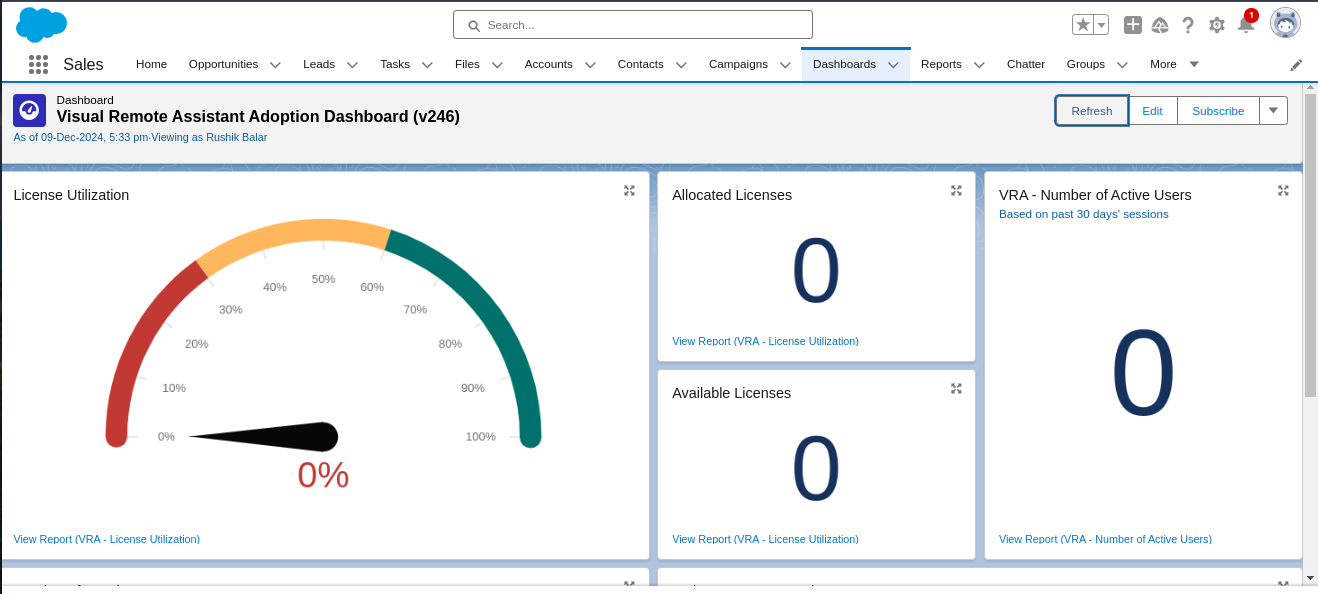
Dashboards in Salesforce are graphical representations of reports. They display data from source reports as visual components, highlighting the organization’s key metrics and performance indicators.
Each dashboard can have up to 20 components, and they display data based on the last time the report was run.
What is a Dynamic Dashboard in Salesforce?
A single dynamic dashboard in Salesforce can display a standard set of metrics (per the user’s sharing settings) across all levels of an organization. It enables each user to see the data they have access to.
With dynamic dashboards, we can control data visibility without creating separate dashboards. A single dynamic dashboard displays a standard set of metrics across all levels of the organization.
Dashboard Widgets and Components
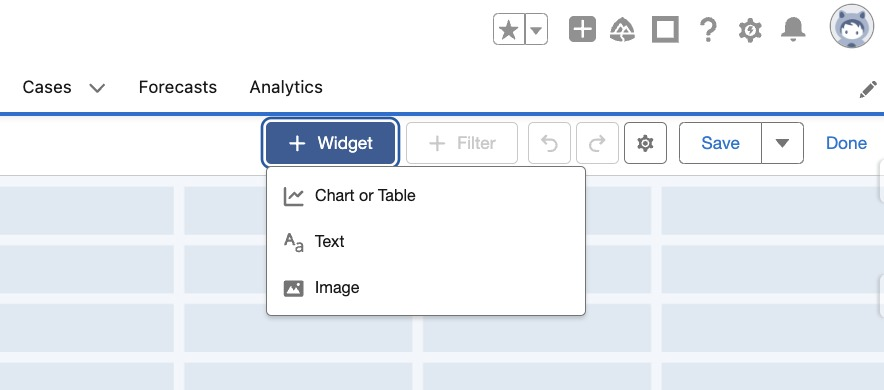
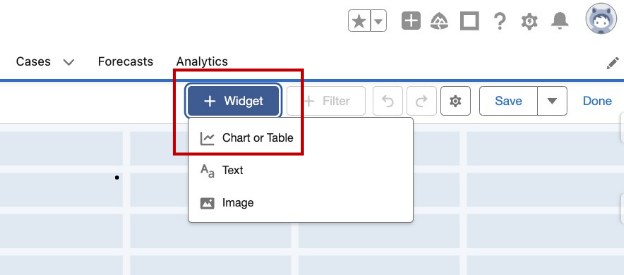
Dashboards consist of multiple widgets that you will need to arrange on the page as you build one. Previously, you could only add charts or tables, but now there are three widget types available to choose from:
- A chart or table powered by your Salesforce Reports.
- Rich text that you can add as instructions, hyperlinks, or guidance to provide information about the dashboard or its components.
- Images that allow you to customize and brand the dashboard, such as with your company’s logo.
How to Create Dashboards in Salesforce?
It is easy to create dashboards in Salesforce. We have prepared a step-by-step guide for you to follow:
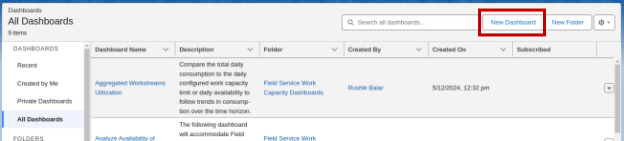
Step 1: Select the Dashboards tab
Step 2: In the upper-right corner, select New Dashboard.
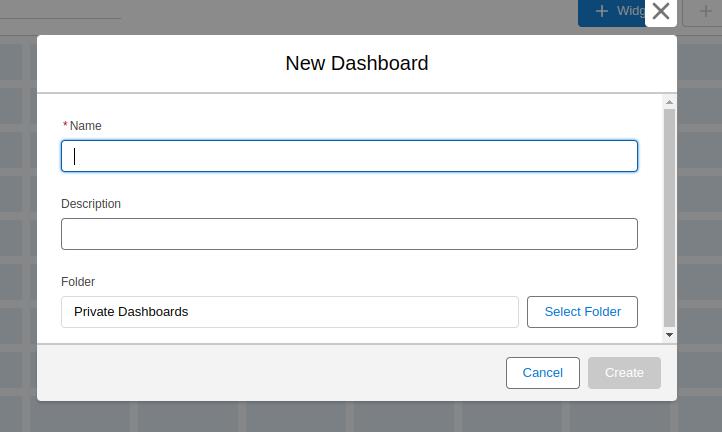
Step 3: Give your dashboard a name and choose a folder. You may also include a description if you’d like.
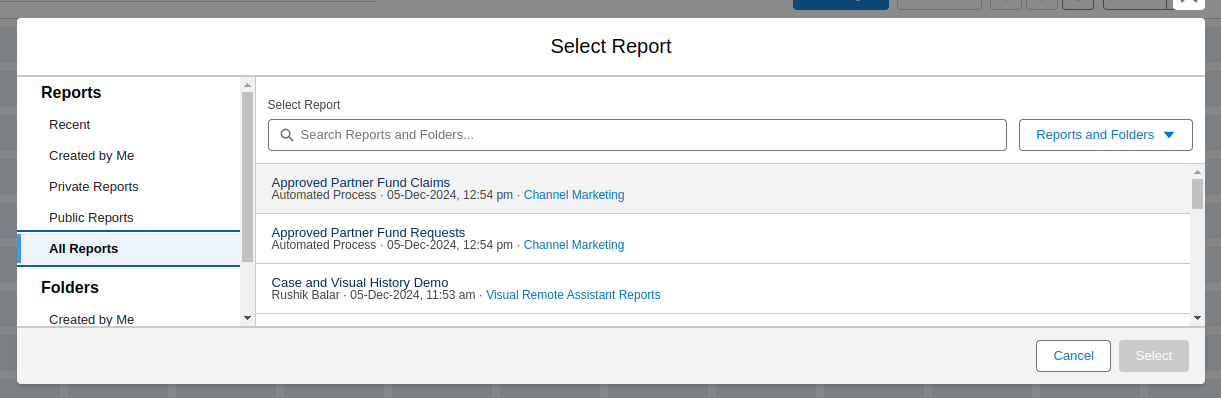
Step 4: To extract data from a report, click Add Component or Widget. Choose a chart or table from the available options. Click Select after choosing your desired report.
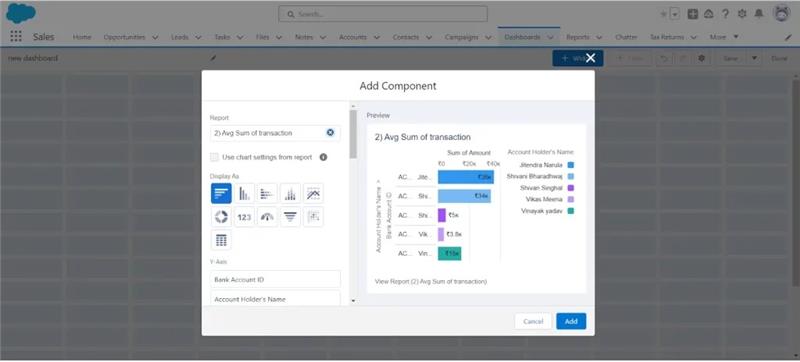
Step 5: Select the data you want to extract from the report, add components to your dashboard, and choose the format in which you want them to appear to personalize your component. Click Add when you have finished customizing.
Step 6: Continue adding any additional elements you want to your dashboard.
Step 7: After all components have been inserted, click Save, then Done.
Step 8: Your dashboard has been generated! Review your published dashboard to ensure everything appears as it should.
Security Settings for Dashboards
The dashboard requires a user’s security and sharing settings. In the Salesforce dashboard, if someone does not have access to all the data, the dashboard must use the security and sharing settings of:
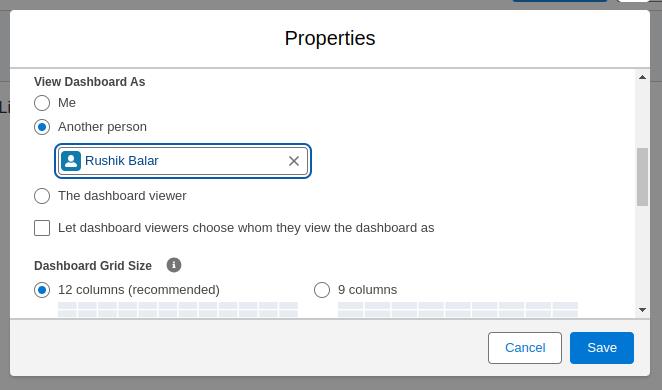
- View Dashboard as Me: The user, even without access to all the data, can still see the full dashboard. Everyone sees the data on the dashboard according to the security and sharing settings of the dashboard creator.
- View Dashboard as Another Person: The security and sharing settings of the selected person are applied when viewing the dashboard.
- View Dashboard as Dashboard Viewer: Also known as a dynamic dashboard. Data is displayed according to the viewer’s own security and sharing settings.
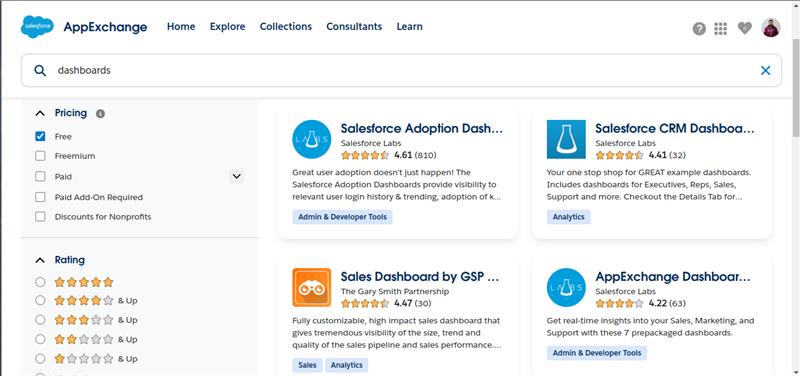
Explore Readily Available Dashboards on AppExchange
you can always explore the available AppExchange free packages.
Key Considerations
- Each dashboard can display up to 25 components, with a maximum of 20 Report Charts.
- The same report can be used for one or multiple widgets.
- You can add up to five Dashboard filters, each supporting up to 50 values.
- Dashboards also support automatic refresh and email scheduling on a daily, weekly, or monthly basis.
- Dynamic Dashboards are limited to ten, five, or three per organisation, depending on the edition. Additional dashboards can be purchased if needed.





 Dadhich Rami

 Shyam Agarwal